
Install with Docker
BetweenRows ships as a single Docker image at ghcr.io/getbetweenrows/betweenrows. The image contains both the data plane (pgwire proxy on port 5434) and the management plane (admin UI and REST API on port 5435) in one binary.
Minimum invocation
docker run -d \
  -e BR_ADMIN_USER=admin \
  -e BR_ADMIN_PASSWORD=changeme \
  -p 5434:5434 -p 5435:5435 \
  -v betweenrows_data:/data \
  ghcr.io/getbetweenrows/betweenrows:0.17.3
TIP
Always pin the image tag to a specific version like :0.17.3. :latest will move you across release boundaries on every container restart — upgrade deliberately instead. See Upgrading for how to change versions safely.
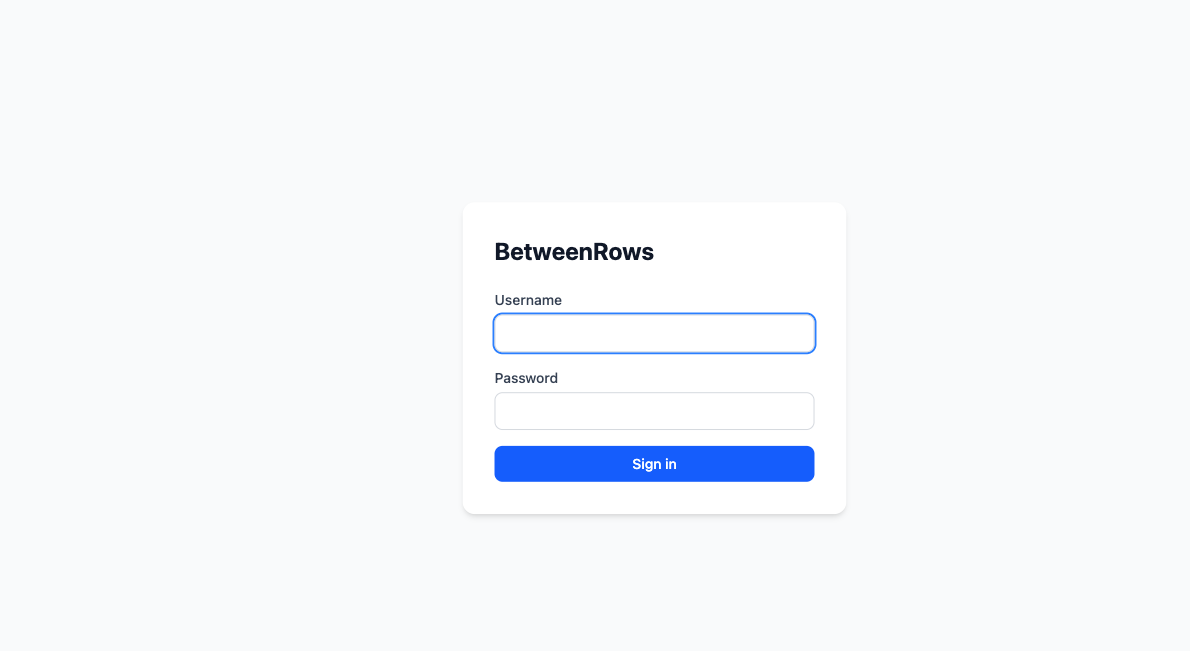
Once the container is up, open http://localhost:5435 and log in with your admin credentials:
What the flags do
| Flag | Purpose |
|---|---|
-e BR_ADMIN_USER=admin | Username for the initial admin account. Only used on first boot; ignored on subsequent boots. Change it before the first run if you prefer a different name — the username cannot be changed after creation. |
-e BR_ADMIN_PASSWORD=changeme | Password for the initial admin account. Required on first boot. Change it before running in any shared environment. You can change it later through the admin UI. |
-p 5434:5434 | SQL proxy port. Connect your PostgreSQL clients here. |
-p 5435:5435 | Admin UI and REST API port. |
-v betweenrows_data:/data | Persistent volume. Stores the SQLite admin database, auto-generated encryption key, and JWT secret. Do not omit — without it, all data and keys are lost when the container restarts. |
Production-grade invocation
For anything beyond a local demo, set the encryption key and JWT secret explicitly so they survive volume reset and can be rotated independently:
docker run -d \
  --name betweenrows \
  --restart unless-stopped \
  -e BR_ADMIN_USER=admin \
  -e BR_ADMIN_PASSWORD="$(openssl rand -base64 24)" \
  -e BR_ENCRYPTION_KEY="$(openssl rand -hex 32)" \
  -e BR_ADMIN_JWT_SECRET="$(openssl rand -base64 32)" \
  -e BR_PROXY_BIND_ADDR=0.0.0.0:5434 \
  -e BR_ADMIN_BIND_ADDR=0.0.0.0:5435 \
  -e RUST_LOG=info \
  -p 5434:5434 -p 5435:5435 \
  -v /srv/betweenrows/data:/data \
ghcr.io/getbetweenrows/betweenrows:0.17.3BR_ENCRYPTION_KEYmust be a 64-character hex string (32 bytes → AES-256-GCM key). If you change this value after secrets have been stored, existing secrets become unreadable.BR_ADMIN_JWT_SECRETcan be any non-empty string, but should be high-entropy. Tokens signed with the old value are rejected after rotation — all admins will need to re-authenticate.- Save both values somewhere secure before the first boot. If you lose them, you will need to wipe
/dataand re-create everything.
See the Configuration reference for the full list of environment variables.
Persistent data
The /data volume contains:
proxy_admin.db— the SQLite admin database (users, policies, datasources, audit logs, attribute definitions)..betweenrows/encryption_key— the auto-generated AES-256-GCM key, ifBR_ENCRYPTION_KEYwas not set explicitly..betweenrows/jwt_secret— the auto-generated JWT signing secret, ifBR_ADMIN_JWT_SECRETwas not set explicitly.
TIP
Back up the whole /data directory regularly. See the Backups page for the recommended approach.
Verifying the install
Check the container is running.
shdocker ps --filter name=betweenrowsTail the logs to confirm startup.
shdocker logs -f betweenrowsLook for lines indicating the admin and proxy bind addresses and that migrations completed.
Open the admin UI.
Visit http://localhost:5435 and log in with your admin credentials.
Run the Quickstart walkthrough.
Follow the Quickstart from step 2 onward to add a data source, create a user, define a policy, and verify it with psql.
Creating users from the shell
The proxy binary has a built-in user create subcommand for bootstrap — creating the first user, scripted provisioning, or rescuing a locked-out admin when the UI is unreachable. For everything else, use the admin UI.
docker exec -it betweenrows proxy user create --username alice --password secret| Flag | Description |
|---|---|
--username <name> | Required. Must match [a-zA-Z0-9_.-], 3–50 characters, start with a letter. |
--password <password> | Required. Stored as an Argon2id hash. |
--admin | Optional. Creates the user with is_admin: true. Use this to create a rescue admin when you're locked out of the UI. |
Password complexity is not enforced from the CLI
The shell path stores whatever password you pass without running the admin API's complexity check. A user created this way with a weak password will later fail to update their own password through the admin UI, which enforces complexity on edit.
Shell history caveat. The password appears in ~/.bash_history / ~/.zsh_history if entered directly. Prefer an env var or a secrets file:
# From an env var
docker exec -it betweenrows proxy user create --username alice --password "$ALICE_PASSWORD"

# Generate a random password and display it once
PASSWORD=$(openssl rand -base64 24)
docker exec -it betweenrows proxy user create --username alice --password "$PASSWORD"
echo "Alice's password: $PASSWORD"
Rescue admin recipe. If you've forgotten the admin password and have no other admin accounts:
docker exec -it betweenrows proxy user create \
  --username rescue \
  --password "$(openssl rand -base64 24)" \
  --admin
Log in as rescue, then reset the original admin password through the UI (or delete rescue after).
INFO
A forgot/reset password feature is on the roadmap. Until then, the shell rescue path is the only way to recover from a lost admin password.
Automation beyond the shell
Everything the admin UI does is backed by a REST API at http://localhost:5435/api/v1/. A full OpenAPI reference is planned; until it ships, the fastest way to discover the request and response shapes for any admin action is to perform the action in the UI and inspect the request in your browser's network tab. Every UI button maps 1:1 to a single REST call under /api/v1/.
Docker Compose
For reproducible local setups, a compose.yaml snippet:
services:
  betweenrows:
    image: ghcr.io/getbetweenrows/betweenrows:0.17.3
    container_name: betweenrows
    restart: unless-stopped
    ports:
      - "5434:5434"
      - "5435:5435"
    environment:
      BR_ADMIN_USER: admin
      BR_ADMIN_PASSWORD: ${BR_ADMIN_PASSWORD:?required}
      BR_ENCRYPTION_KEY: ${BR_ENCRYPTION_KEY:?required}
      BR_ADMIN_JWT_SECRET: ${BR_ADMIN_JWT_SECRET:?required}
      BR_PROXY_BIND_ADDR: 0.0.0.0:5434
      BR_ADMIN_BIND_ADDR: 0.0.0.0:5435
      RUST_LOG: info
    volumes:
      - betweenrows_data:/data

volumes:
  betweenrows_data:
Put the secrets in a .env file (not checked into git) and run docker compose up -d.
Behind a reverse proxy
In production, place the admin UI (port 5435) behind a reverse proxy (nginx, Caddy, Cloudflare Tunnel) for TLS, authentication, and rate limiting. The SQL proxy (port 5434) uses the PostgreSQL wire protocol and should be exposed directly or through a TCP load balancer — not an HTTP proxy.
Set BR_CORS_ALLOWED_ORIGINS if the admin UI is served from a different origin than the API:
-e BR_CORS_ALLOWED_ORIGINS=https://admin.example.comTIP
The admin API requires JWT authentication for all endpoints except /auth/login. A reverse proxy adds defense-in-depth: TLS termination, rate limiting on the login endpoint, and IP allowlisting if your admin team is on a known network.
Upgrading
See Upgrading — the short version is change the image tag and restart, back up /data first, read the changelog between your current and target versions before pulling.
Next steps
- Configuration reference — all environment variables
- Backups — what to snapshot and how
- Troubleshooting — connection failures, policy not matching
- Fly.io install — if you want hosted over self-hosted